Microsoft Password Manager: How It Works, What Changed in 2026, and Whether to Switch
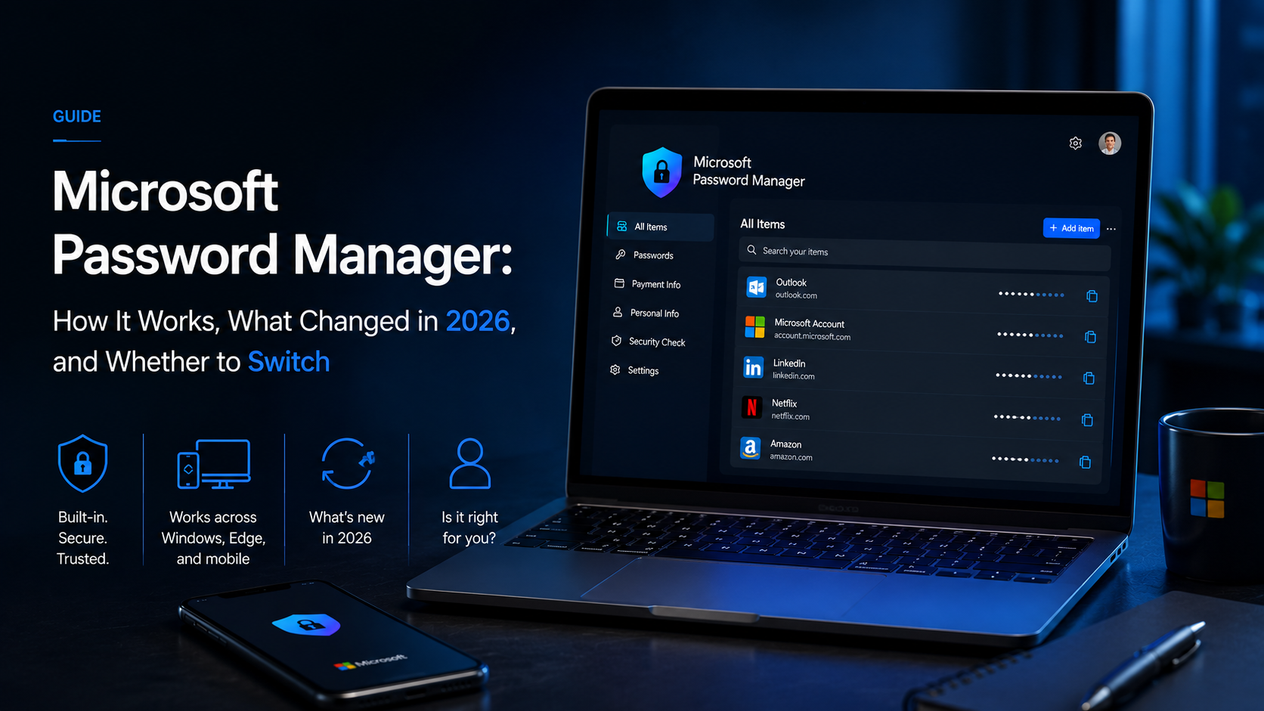
Microsoft's password manager is built into Edge and free. In June 2026 Microsoft removed the custom password option. Here is how it works, what changed, and whether to use it or switch.
Microsoft Password Manager: What You Need to Know
- Microsoft's password manager is built into Edge — it is not a separate app, and never was
- As of June 4 2026, the custom primary password option was removed; Edge now locks your vault with Windows Hello or a PIN only
- Edge encrypts your passwords on-device using the Windows Data Protection API — they cannot be read without your Windows account
- It works across Windows, Mac, iOS and Android, but only within the Edge browser — it cannot autofill in Chrome, Firefox or native apps
- It is free and good enough for straightforward personal use; it is missing zero-knowledge encryption, cross-browser autofill, secure sharing, and TOTP codes
- Bitwarden is the free alternative if you use multiple browsers or need any of the missing features
Microsoft's password manager is not a standalone product. It is built into Microsoft Edge, available on any Windows, Mac, iOS, or Android device that runs Edge, and free to use. You access it through Edge's settings, and it saves passwords only from websites you visit inside Edge.
In June 2026, Microsoft made a significant change to how it works: the option to protect your password vault with a custom standalone password was removed. Edge now uses Windows Hello or a device PIN to unlock your passwords. If you were using a custom password before June 4, your vault was automatically migrated to device authentication.
This guide covers what the Microsoft password manager does, what changed in 2026, how to set it up, and whether it is the right tool for you.
What the Microsoft Edge Password Manager Actually Does
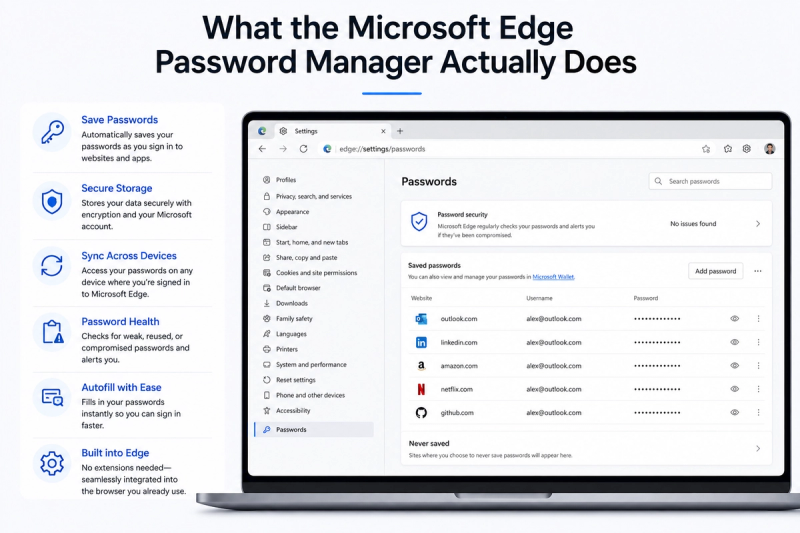
When you sign into a website inside Edge, the browser offers to save your username and password. The next time you visit, Edge fills them in automatically. Behind the scenes, it does the following:
| Feature | How it works |
|---|---|
| Password saving | Edge prompts you to save on every login; saved passwords are encrypted on your device using the Windows Data Protection API |
| Autofill | Fills usernames and passwords automatically when you return to a saved site inside Edge |
| Password generation | Suggests a strong random password when you create a new account or update an existing one |
| Password Monitor | Checks your saved passwords against known breach databases and alerts you if one has been exposed |
| Password Health | Flags weak, reused, or leaked passwords inside the vault |
| Sync across devices | Passwords sync via your Microsoft account across every device where you are signed into Edge |
| Passkeys | Supports passkey storage and autofill as websites move toward passwordless sign-in |
| Vault unlock | Windows Hello (fingerprint, face, PIN) since June 2026 — custom passwords removed |
The June 2026 Change: Custom Passwords Are Gone
Until Edge 146, you could protect your saved passwords with a standalone custom password that was separate from your Windows login. Microsoft removed this option in the Edge 146 update, and on June 4 2026 it stopped working entirely for anyone still using it.
Your passwords still exist and are still protected. What changed is how the vault unlocks. Edge now requires Windows Hello — your fingerprint, face recognition, or device PIN — before it will autofill or reveal passwords. If your device does not support Windows Hello, Edge falls back to your device PIN.
The practical effect for most users is no change at all — if you were already using Windows Hello, nothing is different. If you were using a custom password, your vault was automatically migrated and you now unlock it with your Windows Hello method instead.
How to Set Up the Microsoft Password Manager
It is on by default in Edge, but these steps confirm it is configured correctly.
Enable and find your passwords
- Open Edge. Click the three-dot menu (…) in the top right → Settings
- Click Passwords and autofill in the left menu
- Confirm “Offer to save passwords” is toggled on
- Click Saved Passwords to view every password Edge has stored
Turn on sync so passwords appear on all your devices
- Sign into Edge with your Microsoft account (profile icon, top right)
- Go to Settings → Profiles → Sync
- Confirm Passwords is toggled on in the sync list
Check Password Health
- Go to edge://settings/passwords/passwordMonitor
- Edge shows any weak, reused, or leaked passwords in your vault
- Click Change next to any flagged password to go straight to the site's password page
💡 Tech guides and what actually changed this week. Daybreak is a short Monday brief, free. Subscribe to Daybreak for free →
Microsoft Password Manager vs Third-Party Apps: What You Actually Lose
The honest version of this comparison is not that Edge is bad — it is that it is optimised for one thing: Edge-only, personal Windows use. Outside that box, it has real gaps.
| Feature | Edge (Microsoft) | Bitwarden (free) | 1Password ($2.99/mo) |
|---|---|---|---|
| Cost | Free | Free | $2.99/month |
| Cross-browser autofill | Edge only | All browsers | All browsers |
| Native app autofill | Limited | Yes (Windows, Mac, iOS, Android) | Yes |
| Zero-knowledge encryption | No — Microsoft runs the sync | Yes | Yes |
| TOTP / 2FA codes | No | Yes (free) | Yes |
| Secure sharing | No | Yes (limited, free) | Yes |
| Public security audit | No | Yes (annual) | Yes |
| Works if you leave Microsoft | Export only | Yes | Yes |
The cross-browser and zero-knowledge gaps are the two that matter most for most people. If you use Chrome or Firefox at all, Edge's passwords will not autofill there. And because Microsoft runs the sync rather than encrypting everything before it leaves your device, there is no way to verify that your passwords are private to you.
For the full picture on whether any password manager is worth it, see our guide to what a password manager does and why you need one.
- Free and already installed on every Windows device
- Encrypted on-device using the Windows Data Protection API
- Syncs across all devices signed into Edge, including iPhone and Android
- Password Monitor checks for breached passwords automatically
- Supports passkeys as websites adopt passwordless authentication
- Password Generator suggests strong passwords on every new account
- Windows Hello integration since June 2026 is more secure than a custom password most users would choose
- Works only inside Edge — no autofill in Chrome, Firefox, Safari, or native apps
- Not zero-knowledge: Microsoft's servers handle sync, and there are no public security audits
- Custom primary password removed as of June 2026 — vault is now locked to Windows Hello or PIN
- No TOTP storage, so you need a separate authenticator app
- No secure sharing with family members or colleagues
- Your Microsoft account is a single point of failure — account compromise exposes the vault
- No export to a competing service is built in beyond a basic CSV
Is the Microsoft Password Manager Safe?
The short answer is: yes, for personal use, with caveats.
Edge encrypts your passwords on your device and ties the decryption key to your Windows account and hardware through the Data Protection API. A powered-off laptop or a stolen backup file does not give an attacker your passwords. The Windows Hello requirement added in June 2026 means the vault cannot be accessed without biometric authentication or your device PIN, which is a meaningful improvement over the custom password it replaced — most users chose weak custom passwords.
The caveat is that Edge is not zero-knowledge. Microsoft handles the sync, the architecture is closed-source, and there are no published third-party audits. You are trusting Microsoft's implementation, not verifiable cryptography. For most personal users that is an acceptable trade. For anyone with elevated security requirements, a zero-knowledge manager like Bitwarden is a better choice. Pairing the password manager with two-factor authentication on your Microsoft account is the single most important thing you can do to harden this setup.
Frequently Asked Questions
What is the Microsoft password manager?
Microsoft's password manager is built into the Edge browser. It saves, syncs, and autofills passwords across all your devices via your Microsoft account. It is not a standalone app and is not available outside of Edge.
Where is the Microsoft password manager?
In Microsoft Edge: Settings (… menu) → Passwords and autofill → Saved Passwords. You can also go directly to edge://passwords/ in the address bar.
Is the Microsoft Edge password manager safe?
Yes, for personal use. Edge encrypts passwords on-device using the Windows Data Protection API and requires Windows Hello or a PIN to unlock the vault. The main limitation is that it is not zero-knowledge — Microsoft handles the sync and there are no public third-party audits.
Why did Microsoft remove the custom primary password from Edge?
Microsoft removed the option in Edge 146 and turned it off completely on June 4 2026, citing the move to Windows Hello as a more secure alternative. Device-based authentication with Windows Hello is harder to attack than a password that most users chose carelessly.
Does the Microsoft password manager work on iPhone and Android?
Yes, if you use the Edge browser on iOS or Android and sign in with your Microsoft account. Your passwords sync automatically. It does not work as a system-wide autofill provider on Android or iOS the way 1Password or Bitwarden do.
Can I use the Microsoft password manager on Windows 11 without Edge?
No. Despite the name, the Microsoft Password Manager is only accessible through Edge. It cannot autofill in Chrome, Firefox, or other browsers, and it does not fill passwords in native Windows applications.
How do I export passwords from Microsoft Edge?
Settings → Passwords and autofill → Saved Passwords → the three-dot menu next to Saved Passwords → Export passwords. Edge downloads a CSV file. Import this into your chosen password manager and delete the CSV immediately — it contains every password in plain text.
Should I use the Microsoft password manager or switch to Bitwarden?
Use Edge if you only ever use Edge and want zero setup friction. Switch to Bitwarden if you use more than one browser, want zero-knowledge encryption, need TOTP storage, or want an independently audited product. Bitwarden's free tier covers everything Edge covers and then some.
Should You Use the Microsoft Password Manager?
| Your situation | Recommendation |
|---|---|
| You only use Edge and want the simplest setup | Use it — it is free, already there, and fine for this use case |
| You use Chrome or Firefox as well | Switch to Bitwarden — Edge passwords will not autofill in other browsers |
| You want TOTP codes in the same app | Switch to Bitwarden or Proton Pass — Edge does not store TOTP |
| You need to share passwords with family | 1Password Families or Bitwarden — Edge has no sharing |
| You work in a business environment | A dedicated business manager (1Password, Keeper) — Edge has no admin console |
| Privacy is a priority | Bitwarden or Proton Pass — both are zero-knowledge and openly audited |
Sources
Technical details and the June 2026 change verified against: Microsoft's official Edge password manager page, Windows Central on the custom password removal, and TWiT's hands-on review of the Edge password manager in Windows 11. Last verified August 2026.