Samsung Password Manager (Samsung Pass): How It Works and How to Set It Up
Samsung Pass is Samsung's built-in password manager, now inside Samsung Wallet since 2025. Here is how it works, how to set it up, and whether to use it over Google Password Manager.
Samsung Password Manager: What You Need to Know
- Samsung's password manager is called Samsung Pass — it is built into every Galaxy phone and tablet running Android 8 or higher
- Since early 2025, Samsung has been merging Samsung Pass into Samsung Wallet — if the standalone Pass app has disappeared from your phone, your passwords are now in Wallet
- Passwords are stored on-device inside Samsung Knox, Samsung's hardware security environment — they never leave your device
- Samsung Pass works as a system-wide autofill provider across apps and browsers, not just Samsung Internet
- The Samsung keyboard integration lets you fill passwords even on sites that do not support Android's autofill framework
- You need a Samsung account and at least one biometric method (fingerprint or face) to use it
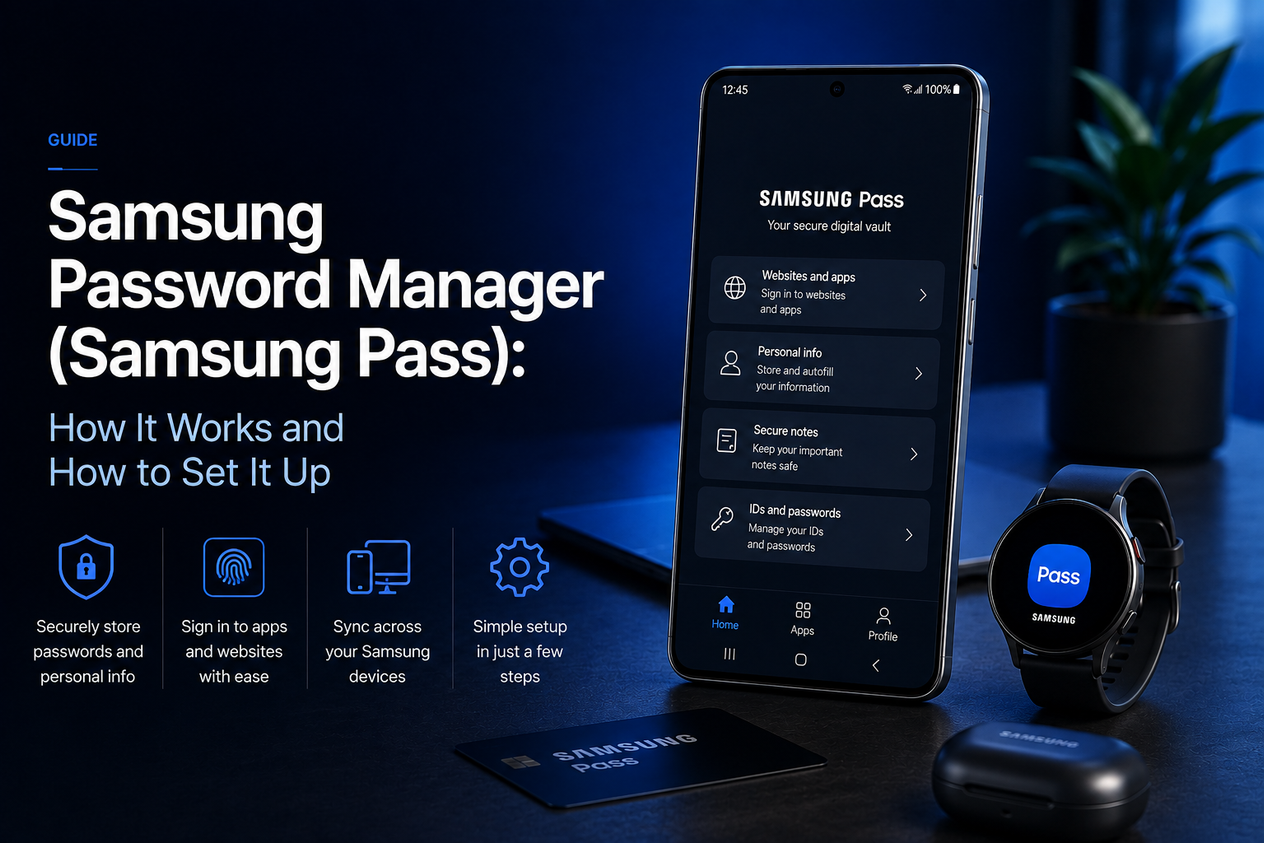
Samsung's built-in password manager is called Samsung Pass. It has been on every Galaxy phone since Android 8, stores your passwords inside the Knox security environment on your device, and fills them in using your fingerprint or face rather than making you type.
If you recently noticed the Samsung Pass app has disappeared from your phone, that is expected. Since early 2025, Samsung has been migrating the standalone app into Samsung Wallet — the same app that handles Samsung Pay. Your saved passwords moved with it.
This guide covers what Samsung Pass does, what changed with the Wallet migration, how to set it up, and whether it is worth using over Google Password Manager or a third-party option.
What Samsung Pass Actually Does
| Feature | How it works |
|---|---|
| Password saving | Samsung Pass prompts you to save logins when you sign into apps or websites; credentials are encrypted and stored in Knox on your device |
| System-wide autofill | Works as a preferred autofill provider across all apps, not just Samsung Internet; set under Settings → General management → Passwords, passkeys, and autofill |
| Samsung keyboard integration | Adds a Samsung Pass icon to the keyboard toolbar, so you can fill passwords even on sites that do not support Android's autofill framework |
| Biometric unlock | Fingerprint, face recognition, or iris scan — you confirm identity before passwords are filled; no master password needed |
| Payment cards and addresses | Stores cards and addresses alongside passwords for autofill at checkout |
| Passkey support | Supports passkeys on sites that have moved to passwordless sign-in |
| Knox security | Passwords are stored in a hardware-isolated environment on the device; biometric data never leaves your phone |
Samsung Pass Is Now Inside Samsung Wallet: What Changed
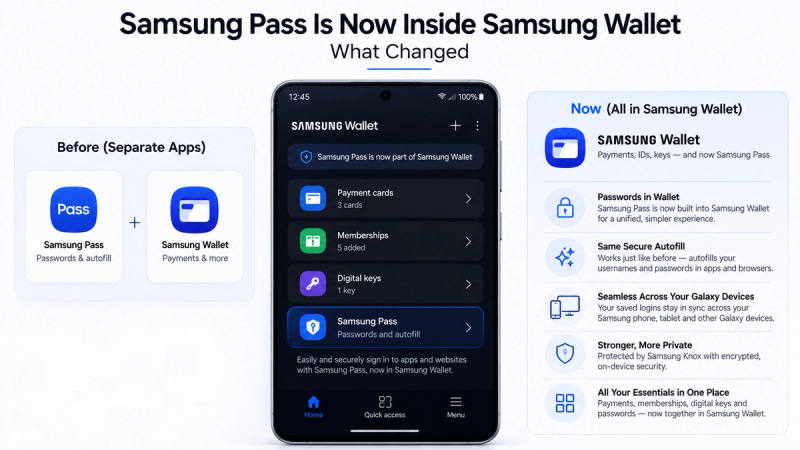
Since early 2025, Samsung has been actively migrating standalone Samsung Pass users into Samsung Wallet. Samsung Wallet was originally Samsung Pay (payments), but Samsung expanded it to handle the full Samsung Pass feature set — passwords, addresses, cards, and identity.
After migration, the standalone Samsung Pass app icon disappears and your passwords are managed from Wallet instead. The Samsung Pass name is not going away — it lives on as the password-management feature inside Wallet, and One UI 7 added a dedicated Settings path for it.
| What you see | What it means |
|---|---|
| Standalone Samsung Pass app | Pre-migration or older One UI; all functions are here |
| Samsung Pass app has disappeared | Migration complete; open Samsung Wallet → tap the three-dot menu → Samsung Pass to access your passwords |
| Prompt to update Samsung Wallet | Samsung is migrating you; update and follow the prompts, your passwords move automatically |
| Settings → General management → Passwords, passkeys, and autofill | One UI 7 dedicated path; set Samsung Pass as preferred service here regardless of which app hosts it |
How to Set Up Samsung Pass on a Galaxy Phone
You need a Samsung account, a screen lock (PIN, pattern, or password), and at least one biometric method enrolled before you start.
Step 1: Open Samsung Pass
- If you have the standalone app: open Samsung Pass from your app drawer
- If migration is complete: open Samsung Wallet → tap the menu icon (three lines or dots) → Samsung Pass
- If you cannot find it: Settings → Security and privacy → Samsung Pass
Step 2: Sign in and register biometrics
- Tap Get started and sign into your Samsung account
- Register your fingerprint or face when prompted
- Samsung Pass is now active — it will prompt you to save passwords when you next sign into apps or websites
Step 3: Set Samsung Pass as your preferred autofill service
- Settings → General management → Passwords, passkeys, and autofill
- Tap Preferred service
- Select Samsung Pass and tap OK
This is the step most guides skip. If another service such as Google stays selected here, Samsung Pass will not reliably appear when you try to sign in.
💡 Tech guides and what actually changed this week. Daybreak is a short Monday brief, free. Subscribe to Daybreak for free →
Samsung Pass vs Google Password Manager: Which Should You Use on Galaxy?
Both are free and pre-installed on Galaxy phones. The choice comes down to whether you stay in the Samsung ecosystem or use other Android devices and browsers.
| Samsung Pass | Google Password Manager | Bitwarden (free) | |
|---|---|---|---|
| Cost | Free | Free | Free |
| Works on Galaxy | Yes — deeply integrated | Yes | Yes |
| Works on other Android devices | No — Samsung only | Yes — any Android | Yes — any device |
| Works on iPhone or iPad | No | Yes (Chrome app) | Yes |
| Works on PC or Mac | No | Yes (Chrome, web) | Yes (all browsers) |
| Keyboard integration | Yes — unique to Samsung Pass | No | No |
| Knox hardware security | Yes | No | No |
| Zero-knowledge encryption | No | No | Yes |
| Cross-browser autofill | Android autofill framework | Chrome-first | All browsers |
| TOTP/2FA storage | No | No | Yes (free) |
If you have one Galaxy phone and do not use Apple or Windows devices, Samsung Pass is the better default. The Samsung keyboard integration alone sets it apart — it can fill passwords in places where even Google Password Manager fails. If you mix devices, Google Password Manager is more portable; if you want zero-knowledge encryption or TOTP codes, Bitwarden covers both for free.
For a broader look at how to choose a password manager, see our guide on what a password manager is and why you need one.
- Free and already installed on every Galaxy phone and tablet running Android 8+
- Knox hardware isolation keeps passwords encrypted on-device — biometrics never leave your phone
- Samsung keyboard integration fills passwords on any site or app, even those without autofill support
- System-wide autofill across apps and browsers, not just Samsung Internet
- Supports passkeys as websites adopt passwordless sign-in
- Biometric unlock is faster and more secure than a master password for daily use
- One UI 7 dedicated settings path makes it easier to find and configure
- Samsung-only — does not work on iPhone, iPad, Windows, or non-Samsung Android devices
- Not zero-knowledge — Samsung runs the sync via your Samsung account
- No TOTP or 2FA code storage — you need a separate authenticator app
- Migration to Samsung Wallet has confused users and removed the standalone app without clear communication
- Requires a Samsung account, which is a single point of failure
- Cross-device sync requires signing into Samsung account on each Galaxy device
Common Samsung Pass Problems and Fixes
| Problem | Fix |
|---|---|
| Samsung Pass not showing up when signing in | Settings → General management → Passwords, passkeys, and autofill → Preferred service → select Samsung Pass |
| Samsung Pass app has disappeared | Open Samsung Wallet → menu → Samsung Pass. Migration moved your passwords there automatically |
| Passwords not syncing to a second Galaxy phone | Sign into the same Samsung account on the second phone, open Samsung Pass (or Wallet), and let it sync |
| Autofill not working in a specific app | Some apps block third-party autofill. Use the Samsung keyboard shortcut instead — tap the Samsung Pass icon in the keyboard toolbar |
| Cannot add new passwords | Update Samsung Wallet and the Samsung Pass app. Open Samsung Pass → tap + → App/Website → enter credentials manually |
| Biometric not recognised | Re-enroll your fingerprint or face under Settings → Security and privacy → Biometrics |
Frequently Asked Questions
What is Samsung's password manager called?
Samsung's password manager is called Samsung Pass. Since early 2025, it has been merged into Samsung Wallet on most devices, so you access it through the Wallet app rather than a standalone Samsung Pass app.
Is Samsung Pass safe?
Yes. Passwords are stored in Samsung Knox, a hardware-isolated security environment on your device. Your biometric data never leaves the phone. The main limitation is that Samsung runs the sync via your Samsung account — it is not zero-knowledge like Bitwarden.
Where did Samsung Pass go?
Samsung merged Samsung Pass into Samsung Wallet starting in early 2025. The standalone app was removed from most devices. Open Samsung Wallet, tap the menu icon, and select Samsung Pass to find your passwords.
Does Samsung Pass work on non-Samsung phones?
No. Samsung Pass is exclusive to Galaxy phones and tablets running Android 8 or higher. If you use a mix of devices, Google Password Manager or Bitwarden are better options.
Should I use Samsung Pass or Google Password Manager on my Galaxy phone?
Use Samsung Pass if you only use Galaxy devices — the Knox security and keyboard integration are genuine advantages. Use Google Password Manager if you also use non-Samsung Android devices, an iPhone, or Chrome on a PC. Use Bitwarden if you want zero-knowledge encryption or TOTP code storage.
How do I turn off Samsung Pass?
Settings → General management → Passwords, passkeys, and autofill → Preferred service → select None (or Google if you want to switch). This disables Samsung Pass autofill but does not delete your saved passwords.
What devices support Samsung Pass?
Any Galaxy phone or tablet running Android 8 or higher with a Samsung account, a screen lock, and at least one biometric method enrolled. This covers every Galaxy S, A, Z, and Tab series device released since 2018.
Should You Use Samsung Pass?
| Your situation | Recommendation |
|---|---|
| Galaxy-only user, want simplest setup | Use Samsung Pass — already installed, Knox-secured, keyboard integration |
| Also use iPhone or Windows PC | Google Password Manager or Bitwarden — Samsung Pass won’t work there |
| Want TOTP codes with your passwords | Bitwarden — free, zero-knowledge, stores TOTP |
| Want zero-knowledge encryption | Bitwarden or Proton Pass — Samsung Pass is not zero-knowledge |
| Just switched from iPhone to Galaxy | Bitwarden makes the migration easiest — it runs on both platforms |
Pairing Samsung Pass with two-factor authentication on your Samsung account is the single most important step to protect it. And if you want to change your phone privacy settings more broadly, see our guide on phone privacy settings worth changing.
Sources
Technical details verified against: Samsung official support on Samsung Pass and autofill, TeamPassword's explainer on the Samsung Wallet migration, and Digital Citizen's setup guide. Last verified August 2026.