WiFi Not Working? The Complete Fix Guide for Every Device and Every Symptom
WiFi not working? This guide covers every symptom across iPhone, Android, Windows, and Mac with exact steps — from a 90-second router reboot to iOS 26 Private Wi-Fi Address fixes and Windows driver updates.
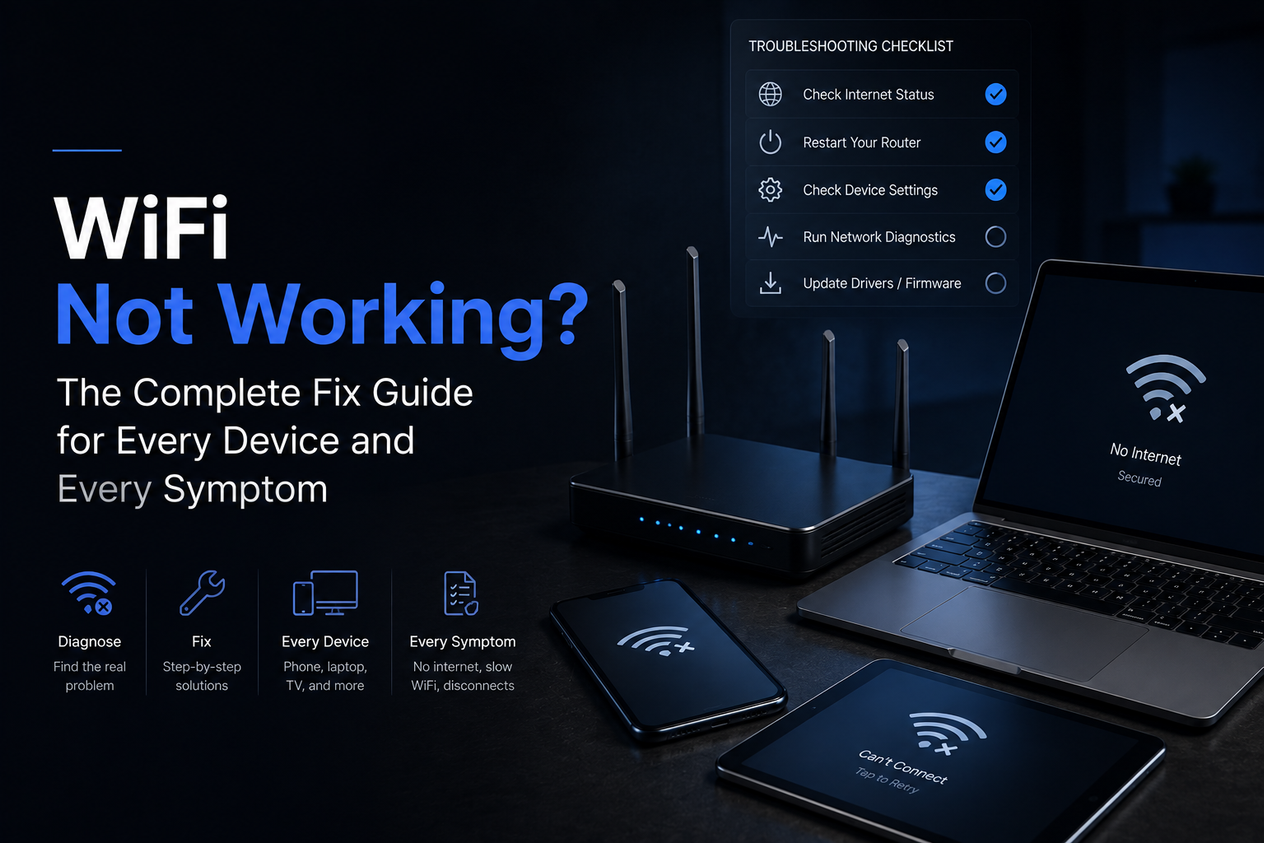
Why Is My WiFi Not Working? Start Here
- A router reboot fixes more than half of all WiFi problems — do this first, every time
- If other devices work but yours does not, the problem is on your device, not the router
- If no device works, the problem is the router, modem, or your ISP
- “Connected but no internet” almost always means a DNS failure or ISP outage, not a broken connection
- iOS 26 introduced a Private Wi-Fi Address setting that some routers reject — this is a common cause of iPhone WiFi failure in 2026
- Windows WiFi driver updates are the leading cause of sudden laptop WiFi failures after a Windows update
- Most issues are fixed within the first four steps below
Your WiFi stopped working. Before you call your ISP or buy a new router, work through these fixes in order. They cover every symptom — no connection at all, “connected but no internet,” dropping every few minutes, working on your phone but not your laptop — and they go from the fastest fix to the most thorough.
Thanks — you're subscribed.
Check your inbox to confirm.
Start with Step 1 regardless of what the symptom is. It solves more than half of all WiFi problems and takes 90 seconds.
Step 1: Reboot Your Router (Fixes 50%+ of All WiFi Problems)
- Unplug your router from the wall
- If you have a separate modem, unplug that too
- Wait 30 seconds — not five, thirty
- Plug the modem back in first (if separate), wait 60 seconds
- Then plug the router back in and wait another 60 seconds
- Test on all your devices
If you have a combined modem/router gateway (common with Xfinity, AT&T, and Spectrum), you only need to power-cycle that single unit. Hold the power button for 10 seconds, release, and wait 2 minutes.
If this fixes it, you're done. If not, move to Step 2.
Step 2: Is the Problem on One Device or All of Them?
Grab a second device — a phone, tablet, or another laptop — and try loading a website.
| What you see | Where the problem is | Where to go next |
|---|---|---|
| No device can connect | Router, modem, or ISP | Step 3 (ISP check) then Step 4 (router) |
| All other devices work, one doesn't | That specific device | Step 5 for iPhone, Step 6 for Windows, Step 7 for Android |
| Connected but nothing loads on all devices | ISP outage or DNS | Step 3 first |
| Keeps dropping every few minutes | Router channel congestion or overheating | Step 4 |
| Works on phone, not laptop | Laptop WiFi driver | Step 6 |
Step 3: Check for an ISP Outage Before Touching Anything Else
Use your phone on cellular data — not WiFi — and do two checks:
- Go to Downdetector.com and search for your ISP by name (Xfinity, Spectrum, AT&T, Verizon, etc.)
- Open your ISP's own app or website — most show real-time outage maps
If there is an outage in your area, there is nothing to fix on your end. Wait it out. ISP outages typically resolve within one to four hours.
No outage showing? Then the problem is your equipment or your device. Keep going.
Step 4: Fix Router and DNS Problems (Connected but No Internet)
The “connected but no internet” error means your device is linked to the router but the router cannot reach the internet, or your device's DNS is broken. Work through these in order.
Flush DNS on Windows
- Open Command Prompt as Administrator (search “cmd”, right-click, Run as administrator)
- Run: ipconfig /flushdns
- Run: netsh winsock reset
- Run: netsh int ip reset
- Restart the computer
Flush DNS on Mac
- Open Terminal (Applications → Utilities → Terminal)
- Run: sudo dscacheutil -flushcache && sudo killall -HUP mDNSResponder
- Enter your Mac password when prompted
Switch to a Faster Public DNS (All Devices)
If DNS flushing fixes it temporarily but the problem returns, your ISP's DNS servers are unreliable. Switch to a public DNS:
| DNS Provider | Primary DNS | Secondary DNS | Speed |
|---|---|---|---|
| Cloudflare | 1.1.1.1 | 1.0.0.1 | Fastest globally, avg under 15 ms |
| 8.8.8.8 | 8.8.4.4 | Slightly slower, excellent reliability | |
| Your ISP | Auto-assigned | Auto-assigned | Typically 30–80 ms, may go down |
On Windows: Settings → Network & Internet → WiFi → Hardware Properties → DNS server assignment → Edit → Manual, enter the DNS above.
On iPhone: Settings → WiFi → tap (i) next to your network → Configure DNS → Manual, add the DNS above.
💡 Tech fixes and the week in tech, without the noise. Daybreak is a short Monday brief on what actually matters. Subscribe to Daybreak for free →
Step 5: WiFi Not Working on iPhone — iOS 26 Fixes
iOS 26 introduced a Private Wi-Fi Address feature that randomises your device's MAC address for privacy. Some home routers reject randomised MACs and will silently block the connection. This is one of the most common causes of iPhone WiFi failure in 2026 and it does not look like a setting problem from the outside.
Fix 1: Turn Off Private Wi-Fi Address for Your Home Network
- Settings → Wi-Fi → tap (i) next to your network
- Tap Private Wi-Fi Address
- Switch from Rotating to Fixed (or Off on older iOS)
- Reconnect to the network
Only do this on networks you own or trust. Leave Private Wi-Fi Address on for public Wi-Fi.
Fix 2: Forget and Rejoin the Network
- Settings → Wi-Fi → tap (i) next to your network
- Tap Forget This Network → Forget
- Go back to the Wi-Fi list and tap the network to rejoin
- Re-enter your password
Fix 3: Toggle Airplane Mode
Open Control Center. Turn Airplane Mode on. Wait 10 seconds. Turn it off. This forces the iPhone to rebuild its radio connection from scratch and clears temporary glitches after iOS updates.
Fix 4: Reset Network Settings
This removes all saved networks and passwords but does not delete your photos, apps, or data. Use it when the above three steps have not worked.
- Settings → General → Transfer or Reset iPhone → Reset → Reset Network Settings
- Enter your passcode to confirm
- Reconnect to Wi-Fi by entering your password again
Step 6: WiFi Not Working on Windows — Driver and Adapter Fixes
Outdated or broken network drivers are the leading cause of sudden WiFi failures on Windows laptops, especially after a Windows Update. This is typically what is happening when WiFi works on your phone but not your laptop.
Fix 1: Run the Windows Network Troubleshooter
- Right-click the network icon in the taskbar
- Select Troubleshoot problems
- Follow the prompts. Windows will detect and fix common driver and IP conflicts automatically
Fix 2: Update or Reinstall the WiFi Driver
- Press Windows + X → Device Manager
- Expand Network Adapters
- Right-click your WiFi adapter → Update driver → Search automatically
- If no update is found, go to your laptop manufacturer's website (Dell, HP, Lenovo, ASUS, etc.) and download the latest WiFi driver for your model manually
Fix 3: Check for a Physical WiFi Switch
Some older laptops have a physical WiFi toggle — a key combination (often Fn + F2 or Fn + F5) or a slider on the side. If this was accidentally switched off, no software fix will work. Check it first.
Step 7: WiFi Not Working on Android
- Toggle WiFi off and back on: Settings → Network & Internet → Internet → toggle WiFi off, wait 5 seconds, toggle on
- Forget and rejoin: tap and hold the network name → Forget → rejoin and re-enter the password
- Toggle Airplane Mode on, wait 10 seconds, turn off
- Reset network settings: Settings → General Management → Reset → Reset Network Settings (varies by manufacturer)
Step 8: WiFi Calling Not Working
WiFi calling uses your internet connection to make calls when your cellular signal is weak. If it stops working, the fix is usually one of these:
- Confirm WiFi calling is enabled: iPhone → Settings → Phone → Wi-Fi Calling; Android → Settings → Connections → Wi-Fi Calling
- Check for a carrier settings update: iPhone → Settings → General → About (a prompt will appear if an update is waiting)
- Restart your phone and router
- Forget and rejoin the WiFi network
- Reset network settings if none of the above work
If Nothing Has Worked: Advanced Fixes
If you have worked through all the steps above and the problem persists, these are the remaining causes to check before replacing hardware.
| Problem | Fix |
|---|---|
| VPN or firewall blocking connection | Temporarily disable your VPN and test. If it connects, the VPN is the issue. Switch servers or disable split-tunneling |
| Router firmware outdated | Log into your router admin panel (usually 192.168.1.1) and check for firmware updates under Administration or Advanced |
| WiFi channel congestion | Log into router admin, change the WiFi channel from Auto to 1, 6, or 11 on 2.4 GHz. On 5 GHz, try a different fixed channel |
| Router overheating | Move the router to an open, ventilated spot. Consumer routers typically last 3–5 years before performance degrades significantly |
| MAC address filtering on router | Log into router admin and check if MAC filtering is on. If a new device cannot connect but old ones can, add the new device's MAC address |
| Malware modifying network settings | Run Windows Defender or Malwarebytes. Check Settings → Network → Proxy is set to Off |
Frequently Asked Questions About WiFi Not Working
Why is my WiFi not working when everything else seems fine?
The most likely cause is a router glitch, which a 30-second power cycle almost always fixes. If rebooting the router doesn’t help and other devices work, the issue is on your specific device — a driver problem on Windows, a Private Wi-Fi Address setting on iPhone, or a stale saved network profile.
Why is my WiFi connected but not working?
“Connected but no internet” means your device has a link to the router but the router cannot reach the internet. Check for an ISP outage first (on cellular). If there’s no outage, flush DNS on your device and try switching to Google (8.8.8.8) or Cloudflare (1.1.1.1) DNS.
Why is my WiFi not working on my iPhone but working on other devices?
In 2026, the most common cause is iOS 26’s Private Wi-Fi Address setting. Your router may be rejecting the randomised MAC address. Go to Settings → Wi-Fi → (i) next to your network → Private Wi-Fi Address → set to Fixed. If that doesn’t fix it, forget the network and rejoin.
Why does my WiFi keep dropping every few minutes?
Intermittent drops usually point to router channel congestion, router overheating, or an overloaded router. Try changing the WiFi channel in your router admin panel and make sure the router is in an open, ventilated spot. If the router is more than five years old, replacing it is likely more cost-effective than continued troubleshooting.
Does resetting network settings on iPhone delete my photos and apps?
No. Reset Network Settings only removes saved WiFi passwords, VPN, and APN configurations. Your photos, apps, and all personal data are untouched. You will need to re-enter your WiFi password after the reset.
Why is my WiFi not working on my TV but working on everything else?
Smart TVs often have weaker WiFi radios than phones and laptops. If the TV is far from the router, signal loss is the likely cause. Try moving the router closer, or connect the TV via Ethernet if your router has a LAN port. Also try forgetting and rejoining the network from the TV’s network settings.
Quick Reference: WiFi Fixes at a Glance
| Symptom | Most likely cause | First fix to try |
|---|---|---|
| No connection on all devices | Router glitch or ISP outage | Reboot router; check Downdetector |
| Connected but no internet, all devices | ISP outage or router DNS failure | Check ISP status page; reboot router |
| One device can't connect | Device-level issue | Forget and rejoin network |
| iPhone won't connect in 2026 | Private Wi-Fi Address rejected by router | Set Private Wi-Fi Address to Fixed |
| Windows laptop can't connect | WiFi driver broken after update | Update driver via Device Manager |
| Connected but no internet, one device | DNS failure | Flush DNS; switch to 1.1.1.1 |
| WiFi keeps dropping | Channel congestion or overheating | Change WiFi channel; ventilate router |
| WiFi calling not working | Carrier settings or feature disabled | Enable in settings; check carrier update |
For more on keeping your phone and devices running well, see our guides on how to speed up a slow phone, how to extend phone battery life, and phone privacy settings worth changing.
Sources
Steps and technical details verified against: Apple Support on resetting network settings, iOS 26 Private Wi-Fi Address documentation, Cloudflare 1.1.1.1 DNS resolver, and Downdetector for ISP outage monitoring. Last verified August 2026.
Related Articles
 Guides
Surfshark vs NordVPN 2026: Speed, Price, and Which to Choose
 Guides
Best Antivirus Software in 2026: Free and Paid Options Ranked
 Guides