How to extend your phone's battery life: 12 settings that actually work
A practical, no-fluff guide to the settings and habits that genuinely add hours to your phone's battery, on both Android and iPhone.
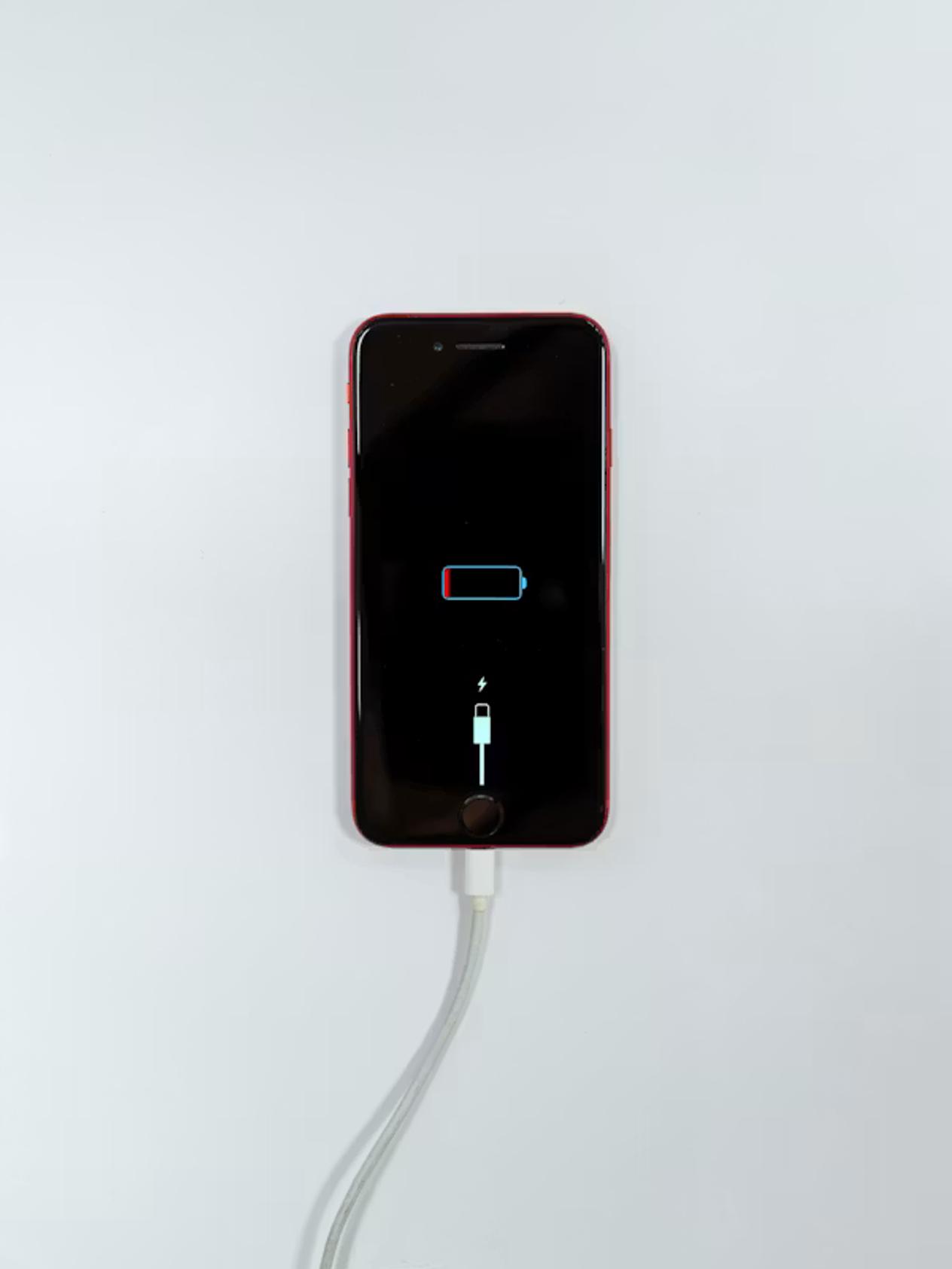
Battery anxiety — the nagging awareness that your phone might not make it through the day — is one of the most common frustrations in tech. The good news is that most of it is manageable with a handful of settings, a couple of habits, and a clear sense of what actually drains your battery versus what does not.
- Screen brightness and always-on display are the single biggest battery drains on most phones
- Background app refresh, location services, and 5G connectivity are the next biggest contributors
- Charging habits (keeping charge between 20–80%) significantly affect long-term battery health
- Clearing RAM manually does not help and may make things worse — your OS manages this already
The biggest drains, fix these first
1. Screen brightness
The display is the largest single consumer of battery power on most phones. Setting adaptive/automatic brightness to let the screen dim in low-light environments, and avoiding maximum brightness indoors, can add 20–40% more screen-on time depending on your phone.
2. Always-on display
AOD keeps a minimal clock or notifications visible at all times. On OLED screens it is relatively efficient, but it still adds constant background draw. If you do not need it, turning it off is an easy win.
3. 5G connectivity
5G radios draw more power than 4G/LTE, especially when searching for signal in areas with patchy coverage. If you are in a low-5G area and do not need peak speeds, switching your network mode to LTE-only in settings noticeably extends battery life.
4. Location services
Check which apps have "Always On" location access. Navigation apps need it while you are driving; most other apps do not. Setting location to "While Using" or "Never" for apps that do not need it prevents constant background GPS polling.
5. Background app refresh
On iPhone, under Settings > General > Background App Refresh, you can restrict which apps update their content while you are not using them. On Android, the equivalent is under battery settings as "Background Activity." Social media apps are the main culprits here.
Further settings worth adjusting
- Push email vs. fetch. Switching from push (server contacts your phone constantly) to fetch (phone checks every 15 or 30 minutes) cuts battery use from email.
- Bluetooth and Wi-Fi scanning. Keeping Bluetooth on when not in use costs very little, but Wi-Fi scanning in the background (looking for networks to switch to) adds up over a day. Turn it off if you are mostly on mobile data.
- Vibration for notifications. Haptic feedback requires more power than a ringtone; disabling vibration for routine notifications reduces motor use.
- Reduce motion and animations. On both platforms, reducing or disabling motion effects cuts down the GPU work the phone does in the background.
- Dark mode on OLED screens. On phones with OLED displays (most modern flagships), dark mode genuinely saves battery because black pixels are turned off entirely, drawing almost no power.
Charging habits for long-term battery health
The battery in your phone degrades over time, but how you charge affects how fast. Lithium-ion batteries last longest when kept between roughly 20% and 80% charge rather than running to empty or holding at 100% indefinitely. Most modern phones now have an optimised charging feature that learns your routine and stops fast-charging at 80%, completing the charge to 100% just before your alarm goes off.
Occasional full 0–100% cycles are fine. Charging through a warm night without the optimised charging feature on, however, accelerates long-term capacity loss because high heat and high voltage are the two conditions that degrade lithium cells fastest.
What does not work
Manually clearing RAM (killing apps in the background switcher) is a widespread myth. Modern operating systems manage memory automatically; manually killing apps forces a cold restart next time you open them, which uses more battery, not less. Closing background apps is only worth doing for apps that actively play audio or use GPS when you did not intend them to.
Battery behaviour varies significantly by phone model, software version, and usage pattern. These are general guidelines; results will differ.
Sources
- How-To Geek — You don't need to free up RAM on your Android phone — https://www.howtogeek.com/you-dont-need-to-free-up-ram-on-your-android-phone-in-fact-you-shouldnt/
- SamMobile — What is RAM on a phone and why does it matter? — https://www.sammobile.com/news/what-is-ram-on-a-phone-and-why-does-it-matter/