How to speed up a slow phone: 10 things to try before buying a new one
Practical, ranked steps to make an Android or iPhone feel faster again — from the easy quick wins to the more thorough fixes.
A phone that felt fast when you bought it but now stutters and lags is one of the most common tech frustrations. Before replacing it, these steps can recover a significant amount of performance — some take 30 seconds, others a few minutes.

- Full storage is the most common cause of a slow phone — keep at least 10–15% free
- Restarting your phone clears the RAM and stops any runaway background processes
- OS updates include performance improvements as well as security patches
- A factory reset is a nuclear option but often fully restores original speed
Quick wins (under 2 minutes each)
1. Restart the phone
The simplest fix that works surprisingly often. Restarting clears the RAM, stops any stuck or runaway processes, and gives the OS a clean slate. If your phone has not been restarted in weeks, this alone may recover noticeable speed.
2. Check storage and delete what you do not need
A full or near-full drive is the single most common cause of a slow phone. The operating system needs free space to write temporary files, move data around, and process updates. Open settings and check your storage usage; delete apps you have not opened in months, clear large video files you have backed up to the cloud, and empty your trash. Aim to keep at least 10–15% free.
3. Clear app caches
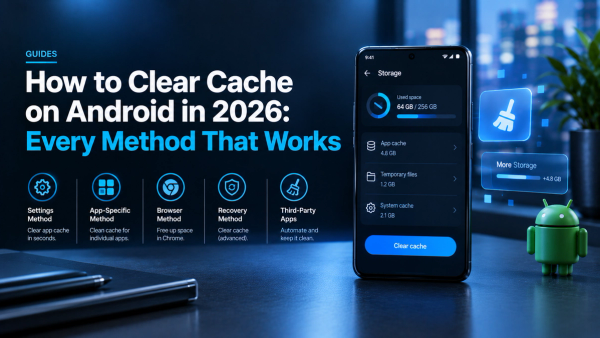
Over time, app caches accumulate data they no longer need. On Android: Settings > Apps > select an app > Storage > Clear Cache. On iPhone, you cannot clear caches directly, but offloading rarely used apps (Settings > General > iPhone Storage > Offload App) removes the app while keeping its data, freeing space. Reinstall when needed.
4. Update your operating system and apps
OS updates regularly include performance improvements and bug fixes, not just security patches. Keeping your phone on the latest version it supports is one of the best passive ways to maintain performance.
More involved fixes
5. Identify and remove battery-draining apps
In Battery settings, both Android and iPhone show which apps have consumed the most battery in the past 24 hours or 7 days. An app using a disproportionate amount of battery is also likely consuming CPU and RAM in the background. Uninstall or restrict it.
6. Reduce visual effects
Animations and transitions look polished but cost processing power. On iPhone: Settings > Accessibility > Motion > Reduce Motion. On Android: the animation scale settings are under Developer Options; set Transition Animation Scale, Window Animation Scale, and Animator Duration Scale to 0.5x or off.
7. Check for and remove malware (Android)
On Android, apps downloaded outside the official Play Store can occasionally be malicious. Run a scan with a reputable security app if you suspect this is an issue.
8. Reset your network settings
If your slowness is specifically about connectivity — Wi-Fi, mobile data, Bluetooth — a network settings reset (Settings > General > Transfer or Reset > Reset > Reset Network Settings on iPhone; Settings > General Management > Reset > Reset Network Settings on Android) can clear corrupt settings. Note: this erases saved Wi-Fi passwords.
9. Check for battery health degradation
A battery with degraded capacity will cause the phone's processor to throttle itself to avoid unexpected shutdowns. iPhone shows this in Settings > Battery > Battery Health. If health is below 80%, a battery replacement — often available from a manufacturer service centre or authorised repair shop — may restore the phone's original speed.
10. Factory reset (last resort)
A factory reset restores the phone to its original software state, removing all data, accumulated cache, and any software issues that have built up. It is effective, but requires a backup first. On iPhone: Settings > General > Transfer or Reset iPhone > Erase All Content and Settings. On Android: Settings > General Management > Reset > Factory Data Reset. Back up your photos, contacts, and app data before proceeding.
Results vary by phone model and software version. A very old phone may hit genuine hardware limits that software fixes cannot overcome.
Sources
- How-To Geek — You don't need to free up RAM on Android — https://www.howtogeek.com/you-dont-need-to-free-up-ram-on-your-android-phone-in-fact-you-shouldnt/
- SamMobile — Phone storage and memory explained — https://www.sammobile.com/news/what-is-the-difference-between-phone-storage-and-memory/