7 phone privacy settings to change right now (Android and iPhone)
A practical guide to the privacy settings that matter most on both Android and iPhone, and exactly where to find them.
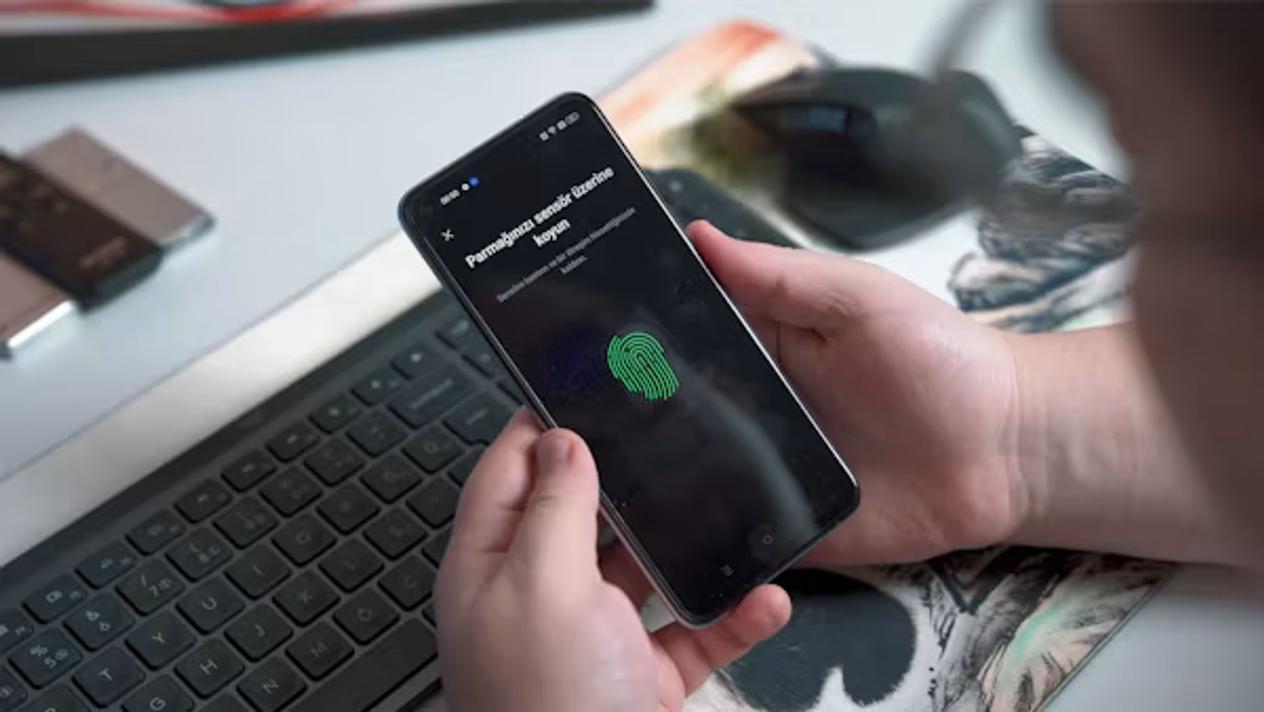
Your phone knows more about you than almost any other device you own — your location, contacts, messages, browsing habits, health data, and financial accounts. Most of the useful privacy controls are buried in settings menus most people never open. These seven changes take under ten minutes in total and meaningfully reduce what your phone shares.
- Location data is the most sensitive permission, most apps do not need "Always On" access
- Ad-tracking identifiers let advertisers build a profile of you across every app you use; you can reset or limit these
- Your lock screen can reveal notifications to anyone who picks up your phone
- Microphone and camera permissions are often granted automatically during app installation
1. Audit location permissions
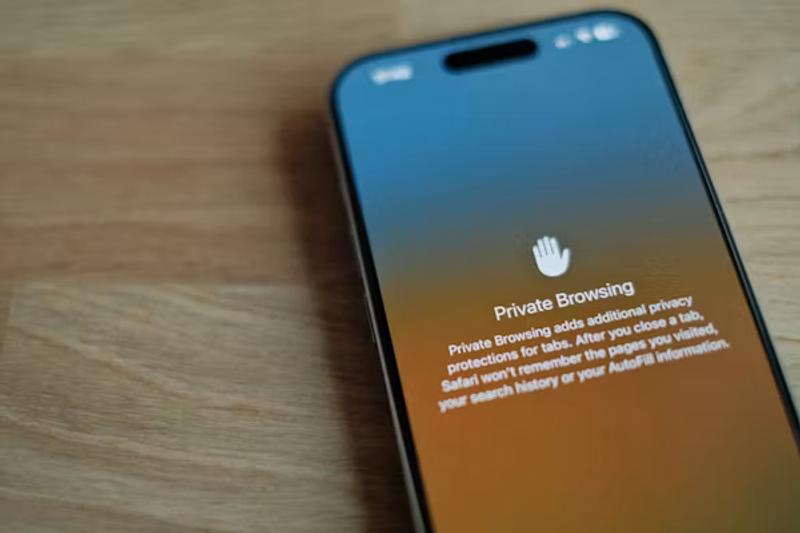
Go to Settings > Privacy & Security > Location Services (iPhone) or Settings > Location (Android). Review every app that has "Always" location access. Change all but navigation and emergency apps to "While Using" or "Never." Social media, shopping, and games almost never need to know where you are when you are not using them.
2. Limit ad tracking
On iPhone: Settings > Privacy & Security > Tracking — turn off "Allow Apps to Request to Track." This stops apps from asking to follow your activity across other companies' apps and websites using Apple's ATT framework. On Android: Settings > Privacy > Ads — select "Delete advertising ID." This removes the identifier advertisers use to link your activity across apps.
3. Check microphone and camera permissions
On iPhone: Settings > Privacy & Security — check Microphone and Camera separately, then review which apps have access. On Android: Settings > Privacy > Permission Manager. Revoke microphone access from any app that does not record audio as its primary function, and camera access from any app that does not need to take photos or scan documents.
4. Lock your lock screen notifications
Your lock screen can show message previews, email subjects, and app notifications to anyone who picks up your phone. On iPhone: Settings > Notifications > Show Previews — change to "When Unlocked" or "Never." On Android: Settings > Notifications > Lock screen notifications — set to "Hide sensitive content."
5. Review what apps can access your contacts
Contact data is particularly sensitive because it exposes not just your information but other people's. On both platforms, check contact permissions under Privacy settings and revoke access for any app that does not need it to function — most social, shopping, and utility apps do not.
6. Turn off personalised ads from your platform
iPhone: Settings > Privacy & Security > Apple Advertising — turn off "Personalized Ads." Google (Android and browser): myaccount.google.com > Data & Privacy > Ad Settings — turn off "Personalised advertising." This does not reduce the number of ads you see but stops the platform from targeting them to your specific interests and behaviours.
7. Enable encrypted backups
If your phone backups are not encrypted, a copy of your messages, photos, and app data sits on a server without the encryption your device provides. On iPhone, iCloud backups are encrypted by default with Advanced Data Protection enabled (Settings > [your name] > iCloud > Advanced Data Protection). On Android, Google One backups are encrypted. Confirm this is enabled for your device.
Privacy settings change with OS updates; verify these paths on your specific iOS or Android version. This is general information, not legal advice.
Sources
- Security.org — Privacy and VPN fundamentals for Android — https://www.security.org/vpn/best/android/
- ExpressVPN Blog — Data privacy and mobile tracking — https://www.expressvpn.com/blog/vpn-data-usage/